README
viewer.swissgeol.ch
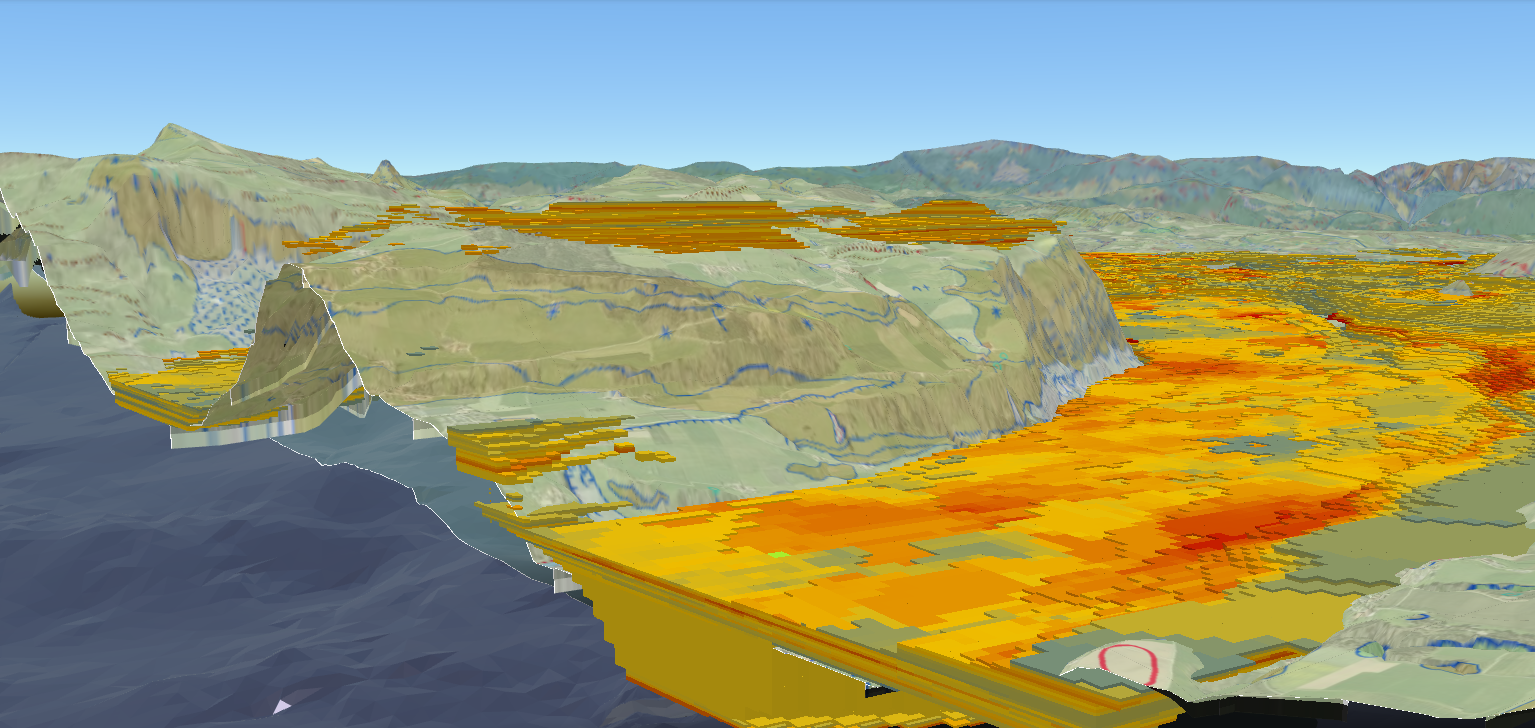
Description
Use viewer.swissgeol.ch to explore geological data across Switzerland - both at the surface and deep underground. You can view existing datasets, combine different sources, and even integrate your own data for a tailored experience.
With viewer.swissgeol.ch, you can...
...get an overview of geological data available across Switzerland
...combine surface and subsurface datasets
...slice through 3D geological models to explore underground structures
...upload and visualize your own geodata
...and much more
Installation
Follow the steps below to run viewer.swissgeol.ch in your local development environment.
Prerequisites
Note that the development environment is fully dockerized. However, we recommend installing every programming language to optimize your experience.
Set Up the Development Environment
Follow these steps to set up the development environment on your local machine:
1. Install API Dependencies
Navigate to the API directory and download its dependencies:
cd api && cargo fetch
2. Install UI Dependencies
Install the UI's dependencies:
cd ui && npm install
Start Development Environment
Start the application's Docker containers:
docker compose up
This will automatically install all dockerized dependencies and also initialize the database.
Usage
The viewer's API and UI are available as Docker images:
A full deployment for Kubernetes is available as Helm charts in k8s/.
URL Parameters
A few URL parameters will modify the behavior of the viewer:
noLimitdisable the navigation limits (sphere and lava). Use noLimit=false to enforce limits on local dev.ionAssetIdsdisplay some additional Cesium ION 3dtilesets (coma separated list of CesiumIon ids)ionTokenoptional token to access Cesium ION 3dtilesetsinitialScreenSpaceErrordefine the visual quality (default: 10000)maximumScreenSpaceErrordefine the visual quality (default: 2.0 except for localhost which is 20.0)ownterrain=falsedisables the terrain (mind that their is only data in the swissrectangle)ownterrain=cli_ticino_0.5m' use the 0.5m terrain generated using Cesium CLI (for testing only - only around Ticino)ownterrain=cli_walensee_0.5m' use the 0.5m terrain generated using Cesium CLI (for testing only - only around Walensee)swissrectangle=falsedo not restrict rendering to the Swiss rectanglenorequestrendermodedisable the resource optimizations (will use 100% CPU)inspectordisplay the Cesium Inspector widgetinspector_wireframeenable the wireframe modecesiumToolbardisplay configuration panel for fog, ambient, background color and terrain underground color