README
RadioGlobe
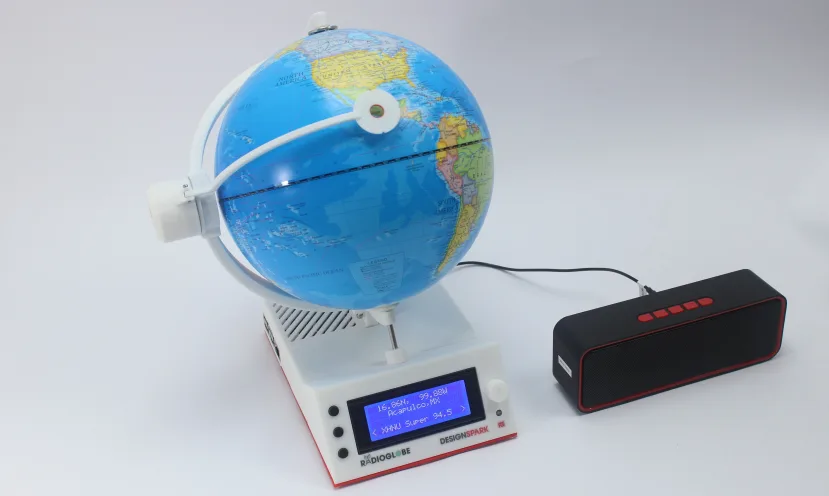
RadioGlobe is an internet radio player originally by Jude Pullen (Hey Jude), Donald Robson and Peter Milne.
A globe is used to locate radio stations by moving a cursor which scans for stations in the area around large cities. Once a city is found, you can select playable stations displayed on the LCD screen using the jog wheel.
Full details of how to 3D print and build RadioGlobe were published on Instructables and DesignSpark. It runs on a Raspberry Pi with the Open Source code written in Python and is available on GitHub under the Apache License 2.0. The music player is based on VLC and uses pulseaudio.
Installation
RadioGlobe python packages have been tested on a Raspberry Pi 4 model B with 4MB RAM and a powered speaker connected to the audio jack. Bluetooth speakers are supported, tested with a UE Boom 2.
Most of the installation is handled for you with an installation script install.sh. It does the bare minimum to get RadioGlobe up and running. This is in case you have a non-standard setup. It assumes you have a working system based on Raspberry Pi OS Lite that you can SSH into remotely and can play audio through the audio jack.
SPI and I2C interfaces are required for the electronics and setting auto-login for the default user for use with the audio. You can do this with raspi-conf.
If you want to use a BT speaker, you can configure it with bluetoothctl.
Step 1 - Raspberry Pi OS Lite
Get your Raspberry Pi up and running.
Flash Raspberry Pi OS Lite Bookworm to a 16GB SD card using Raspberry Pi Imager from the Raspberry Pi Other section. Raspberry Pi OS installation
Note: Use OS Customisations to set the hostname to radioglobe, default user to radioglobe, optional WiFi, timezone and SSH access. If you don't do this here, you will have a hard time getting SSH access!
Step 2 - SSH access
Insert the SD card, power on the system and let the Pi connect to your network, either via an Ethernet cable (Best) or via WiFi. It can take a couple of minutes on first boot. Use your routers admin page to find the Raspberry Pi hostname and IP address. From your PC / Laptop (Windows / Mac / Linux) open a terminal and login remotely:
ssh radioglobe@radioglobe.local
Step 3 - Update system
Bring your system up-to-date:
sudo apt update
sudo apt full-upgrade
sudo apt install git
sudo reboot
Step 4 - raspi-config
Once logged in, open raspi-config as root and setup the interfaces and auto-login:
sudo raspi-config
- Enable
SPIinInterfacing Options- used by the encoders. - Enable
I2CinInterfacing Options- used by the jog wheel, etc. - Enable
Auto LogininSystem Options, chooseConsole Auto Loginrequired for pulseaudio sound server. - Reboot
Step 5 - RadioGlobe download
Download and clone the RadioGlobe source from GitHub:
cd ~
git clone https://github.com/DesignSparkRS/RadioGlobe
Or the development system - for the more adventurous!:
git clone https://github.com/milnepe/RadioGlobe
Step 6 - Run installer
The installation script install.sh will pull in all the software packages (quite a few) and setup a virtual environment for Python (required in Bookworm) and setup systemd services to start RadioGlobe on startup.
The startup service unit services/radioglobe.service assumes RadioGlobe is installed in the radioglobe users home directory. If not you will need to edit the template accordingly.
You can run the installer multiple times if you have any issues.
The first time this is run can take quite a while as there are a few additional packages to pull in.
cd RadioGlobe
./install.sh
The system will reboot after completing and if all went well RadioGlobe will start with the welcome screen after about 30 seconds.
Step 7 - Calibration
When starting for the first time the encoders need calibrating. Set the reticule cross-hairs to the intersection of the 0 latitude and 0 longitude lines. Now press and hold the middle button until the LED flashes GREEN and the display shows Calibrated.
The system retains the calibration in data/offsets.json so you only need to do this once. You can re-calibrate at any time.
Step 8 - Play
Once calibrated, move the reticule near to a large city, for example London GB (51.51N, 0.13W). When a city is close, the LED will flash RED and the first station should start playing. You can change stations using the jog wheel. Set the volume up or down with the top and bottom buttons.
Step 9 - Power off
It is important to shut the Pi down correctly so that the SD card is not corrupted. Press and hold the Jog wheel until the shutdown message appears, then press the middle button to shut down. Wait more than 10 seconds before disconnecting the power.
Stations
There is a rather outdated stations.json file in the stations dir which contains all the station urls. vfinel maintains a much much larger and more up-to-date file at stations.json. It can be downloaded and copied to /opt/radioglobe/ then restart the service.
systemctl --user restart radioglobe.service
Upgrading
If you have an existing system based on Bullseye or Bookworm you can try upgrading. This may not work depending on how much custom config you have on your system.
Make a copy of your stations.json file if you have made any custom changes to this. It can be copied back to the new installation.
Follow the above from Step 5.
Bluetooth Speakers
Once RadioGlobe is working with powered speakers you can try adding Bluetooth speakers or headphones. These can be setup with bluetoothctl.
Check that pulseaudio is active and running - you may see some failures listed but they can be mostly be ignored:
systemctl --user status pulseaudio
Start bluetoothctl as the default user - the prompt will change to [bluetooth]#:
bluetoothctl
Turn scanning on - the Pi will start scanning for bluetooth devices:
scan on
Now turn on your BT speaker and set it to pairing mode - making sure that no other device is connected to it. It should show up in the list of devices with the MAC address and name of the device, for example:
...
[CHG] Device 88:C6:30:1A:22:10 RSSI: -41
[CHG] Device 88:C6:30:1A:22:10 TxPower: 4
[CHG] Device 88:C6:30:1A:22:10 Name: UE BOOM 2
[CHG] Device 88:C6:30:1A:22:10 Alias: UE BOOM 2
[CHG] Device 88:C6:30:1A:22:10 Class: 0x00240418
[CHG] Device 88:C6:30:1A:22:10 Icon: audio-headphones
[CHG] Device 88:C6:30:1A:22:10 Modalias: bluetooth:v000ApFFFFdFFFF
...
Once you have the DT MAC and name turn off scanning:
scan off
Now pair the speaker using the MAC address:
pair 88:C6:30:1A:22:10
Trust the device so you don't have to do this again after a reboot:
trust 88:C6:30:1A:22:10
Now you should be able to connect to the speaker:
connect 88:C6:30:1A:22:10
If the process is successful, the audio should switch to output from your BT speaker!
When starting RadioGlobe it is best to have your BT speaker off and turn it on once RadioGlobe has started up fully.
Audio
Audio code is now in radioglobe/streaming/python_vlc_streaming.py which uses python-vlc. This module can handle station URLs that are plain media formats and also media play lists. This was not the case with the older cvlc player.
To take advantage of pulseaudio it is important to have a logged in user and RadioGlobe must be started as the default user. This will start pulseaudio in a secure way and allow automatic detection of your output devices.
Audio has changed across the last Debian versions so we recommend Bookworm where most of the testing has taken place.
Note that radio stations change their URLs all the time so a URL may be out-of-date. You can update this by editing the stations.json file. Save a copy first! Some stations go off-line in their night time, depending on your timezone. Try back later or you can remove them from stations.json.
Troubleshooting
If things are not working the first step is to make sure that your Pi is setup and up-to-date and you have followed the steps above carefully. We recommend to start with a powered speaker connected to the audio jack first, before moving on to Bluetooth speakers, which are more problematic. 0. Check the dafault user is radioglobe:
whoami
radioglobe
- Check OS release is Bookworm - this is the current release tested against
cat /etc/os-release
...
VERSION_CODENAME=bookworm
...
- Check the system is up-to-date - if not go to Step 3.
sudo apt update
...
All packages are up to date.
- Check SPI and I2C modules have loaded:
lsmod | grep spi
spidev                 16384  0
spi_bcm2835            20480  0

lsmod | grep i2c
i2c_dev                16384  2
i2c_bcm2835            16384  1
i2c_brcmstb            12288  0
- Check that you enabled auto-login in
raspi-config- see Step 4. If the Pi only boots when you SSH in you probably forgot to do this! - Re-run the install script as the default user and check for any failures:
bash -x install.sh
- The startup script must be in
/etc/systemd/user/radioglobe.serviceso that it can be started as the default user. - Check the journal as default user - there is a lot of logging if it is set to DEBUG in
main.pywhich should show up most issues. Don't forget to use the --user param and don't run as root.
journalctl --user-unit=radioglobe.service -b
- If all else fails
Turn it off and on again- usesudo poweroff:)
You can always post an issue on GitHub and we will try to help but we also have other things to do!
Developing with UV (on Linux) - please use the UV docs for other platforms
- Install UV on your development host
- Clone the repo:
git clone https://github.com/DesignSparkRS/RadioGlobe.git
- Checkout your own branch:
cd RadioGlobe
git checkout -b mybranch
- Create a virtual environment - this must be compatible with the version of python on the RPi:
uv venv --python 3.11
source .venv/bin/activate
- Initialise the project:
uv init --no-workspace
- Add dependencies:
uv add --dev pytest
uv add python-vlc
uv add lgpio rpi-lgpio
uv pip install "git+https://github.com/pl31/python-liquidcrystal_i2c.git"
uv add spidev smbus
uv add requests
- Test UV:
uv run hello.py
Hello from radioglobe!